1. Introduction
SaloCircle is a comprehensive platform that enables salon owners to hire skilled professionals and academies to promote their courses and training programs.
This guide provides a structured, step-by-step walkthrough to help salon owners and academy operators efficiently manage hiring, job postings, and academy listings.
2. Getting Started
2.1 Accessing the Application
- Open the SaloCircle application on your device.
2.2 Main Dashboard

- Upon launching the application, you will land on the main dashboard.
- You will be prompted to select your account type.
Select "I want to hire" to proceed as a Salon Owner / Academy.
3. Login & Authentication Process
Step 1: Mobile Number Entry
- Enter your active mobile number
- Ensure number is correct for OTP verification
Click "Send OTP"
Step 2: OTP Verification
- Enter the One-Time Password (OTP) received via SMS.
- OTP is time-sensitive, so enter it promptly.
4. Profile Setup

On login, a pop-up will guide you to complete your registration by filling in required information.
Note: Once your registration is completed, your request will be sent to the SaloCircle admin for review and verification. After approval, you will be notified and you can add branch, post jobs, view candidate profiles, add academies and courses.
4.1 Add Branches

Fill in your branch details as shown below. You can also add multiple branches if needed.
Required Details:
- Branch Name
- Category
- Number of Staff
- Address
- City
- Pincode
Click “Add” after entering each branch
Best Practice:
Ensure all branch details are accurate to improve candidate targeting.
5. Overview Screen
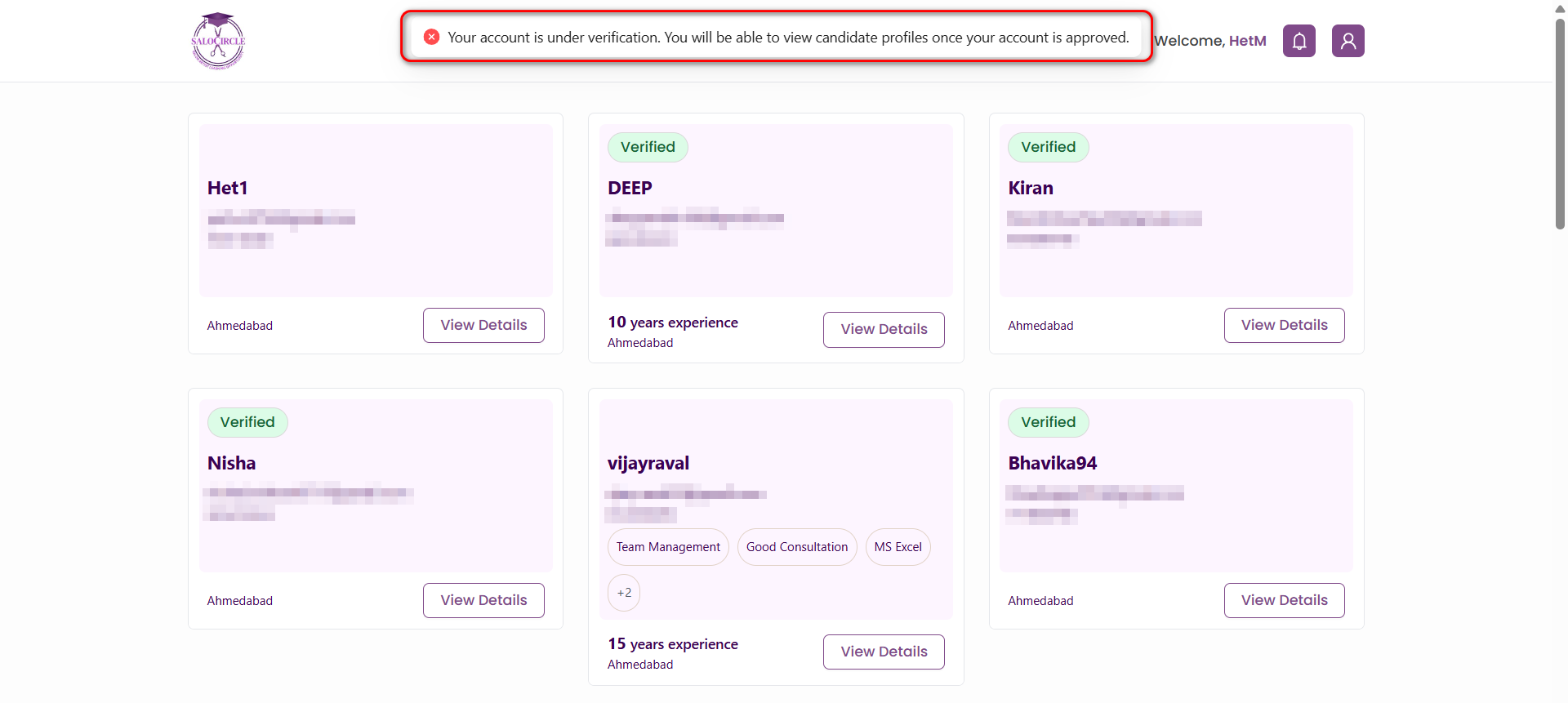
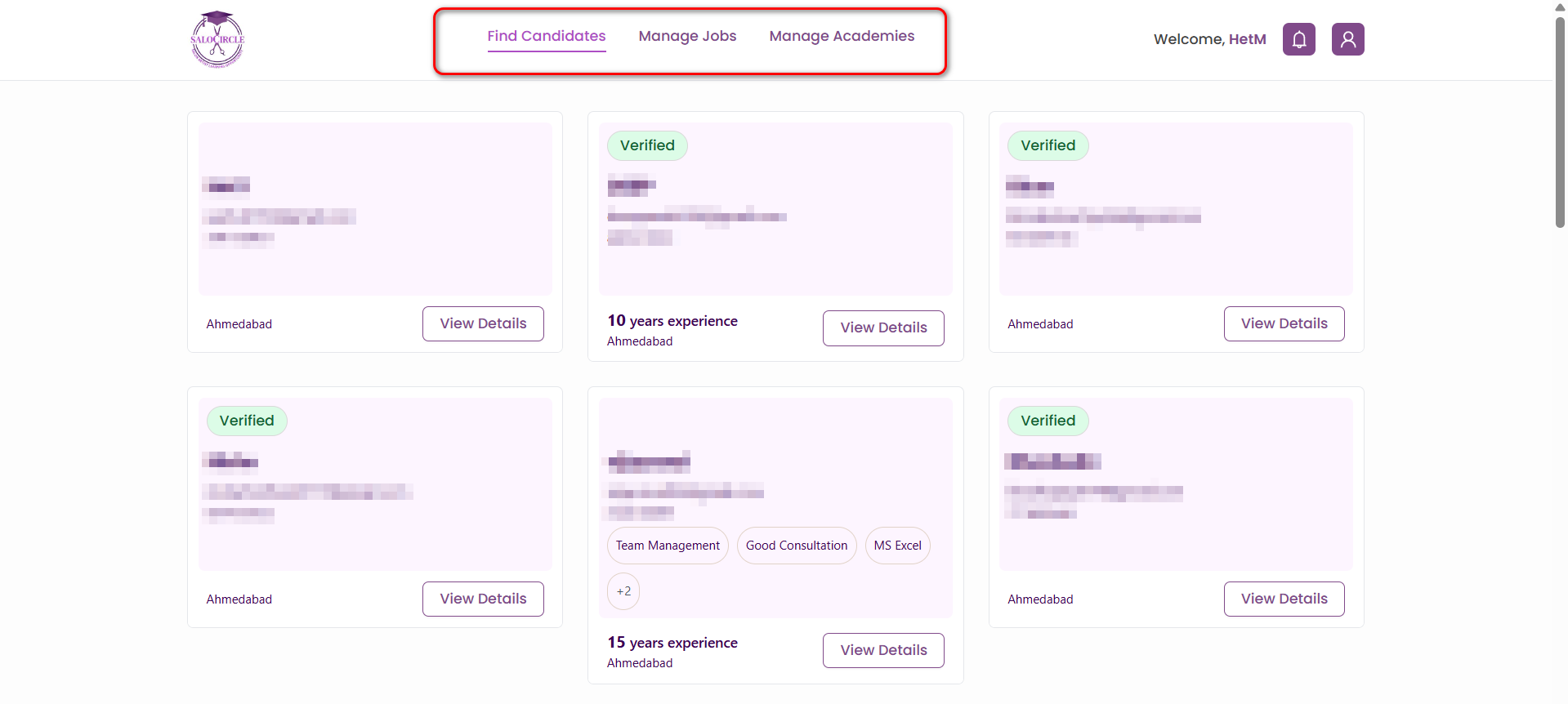
After successfully logging in, you can access and navigate through the below pages. The application provides the following options:
- Find Candidates
- Manage Jobs
- Manage Academies
5.1 Find Candidates
Note: If you are a new user, your account is under verification. Please wait until approval to access candidate profiles.

Click "View Details" to access the full candidate profile, including skills, experience and contact information.
Candidate Information as below:
- Name
- Email Address
- Phone Number
- Total Experience (in years)
- Skills
- City
5.2 Manage Jobs
Post a New Job

Note: You can add an academy once your account is verified. Please wait to get it approved.
Click "Post Job" to add new job requirement post
Fill in the following job details:
Basic Job Information
- Select Branch
- Job Title (e.g., Skin Treatment Specialist)
- Category (dropdown selection)
Compensation & Openings
- Minimum Salary
- Maximum Salary
- Number of Vacancies
Job Type
Select applicable options:
- Full-time
- Part-time
- Internship
- Home Salon
Candidate Preferences
- Gender
- Minimum & Maximum Experience
- Minimum & Maximum Age
Skills & Qualifications
- Required Skills (add multiple entries)
- Preferred Languages
- Education Level (dropdown selection)
Job Description
Provide a detailed description including responsibilities, expectations, and benefits.
Benefits
Select applicable benefits (checkbox options such as accommodation, incentives, etc.)
Hiring Type
Choose a hiring type based on urgency and visibility:
- Basic
- Urgent
- Premium
- Full Hiring Support
Click on "Post Job" to make post live
Job Status Tabs
Your jobs will be categorized into:
- All: All job postings
- Pending: Awaiting approval or action
- Live: Active job listings
- Closed: Completed or inactive jobs
5.3 Manage Academies

In the Manage Academies section, you can view a quick overview of all the academies you have added. If you are a new user, click on the 'Add New Academy' option to get started.

Note: If you are a new user, you can add an academy once your profile has been approved. Please wait until the verification process is completed as shown in above image
Add Academy Listing

Provide complete academy details:
Basic Information
- Logo (upload)
- Academy Name
- Tagline
- Founder Name
Address and other Information
- Full Address
- State & City
- Affiliated Body
- License Number
- Certification Type (dropdown)
Additional Information
- Key Awards & Achievements
- Facilities (list available infrastructure/services)
- Website URL
- Instagram Handle
- Facebook Handle
Click "Post Academy"
Note: Once added, your academy will appear in the Manage Academies section
5.4 Add Courses
The Courses section appears within the Manage Academies module. This allows salon owners and academy operators to create and manage training programs offered by their academy.
Important Note
Before adding a course, please ensure the following:
- Your profile must be verified by the admin
- You must have added at least one academy
If your profile is not verified:
Please wait for the verification process to complete.
Once verified:
- Add your academy
- Then you will be able to add courses
Steps to Add a Course

Step 1: Go to the Manage Academies section from the top navigation menu
Step 2: If you have not added an academy yet:
- Click on Add Academy
- Complete all required academy details
Step 3: After adding the academy, it will appear in the Manage Academies section
Step 4: Inside your academy details page, locate the Courses section
Step 5: Click on the “+ Add Courses” button
Course Form Details
Once you click Add Courses, a form will appear. Fill in the following details:

Basic Information
- Course Name - Enter the name of the course
- City - Select or enter the city where the course will be conducted
- Job Category - Choose relevant category (e.g., Beautician, Hair, Skin)
- Course Level - Select level (Beginner / Intermediate / Advanced)
Course Details
- Fees (₹) - Enter course fees
- Batch Size - Number of students per batch
Optional Fields
- Discount Option - Enable if you want to offer a discount
- Kit Included - Select if course materials/tools are provided
Schedule
- Start Date - Select course start date
- End Date - Select course end date
Additional Information
- Other Learnings - Add extra skills or benefits included in the course
- Course Description - Provide a detailed description of the course content
Final Step
After filling all required details:
- Click on “Add Course” to publish the course
Manage Courses
- Edit course details anytime using the Edit icon
- Track applicants directly from the course card
6. Best Practices for Salon Owners & Academies
- Complete your profile 100% before posting jobs
- Add all branches accurately for better reach
- Use clear and specific job titles
- Provide detailed job descriptions
- Set competitive and realistic salary ranges
- Respond to candidates promptly
- Keep contact information updated
- Add complete academy details for higher visibility and trust