1. Introduction
SaloCircle is a specialized platform designed for salon professionals to connect with employers and enhance their skills through certified academies. It simplifies the process of job searching, application tracking, and professional development—all in one place.
This manual provides a comprehensive, step-by-step guide to help job seekers effectively navigate the platform and maximize its benefits.
2. Getting Started
2.1 Accessing the Application
- Open the SaloCircle application on your device.
2.2 Main Dashboard
Upon opening the app, you will land on the Main Dashboard.
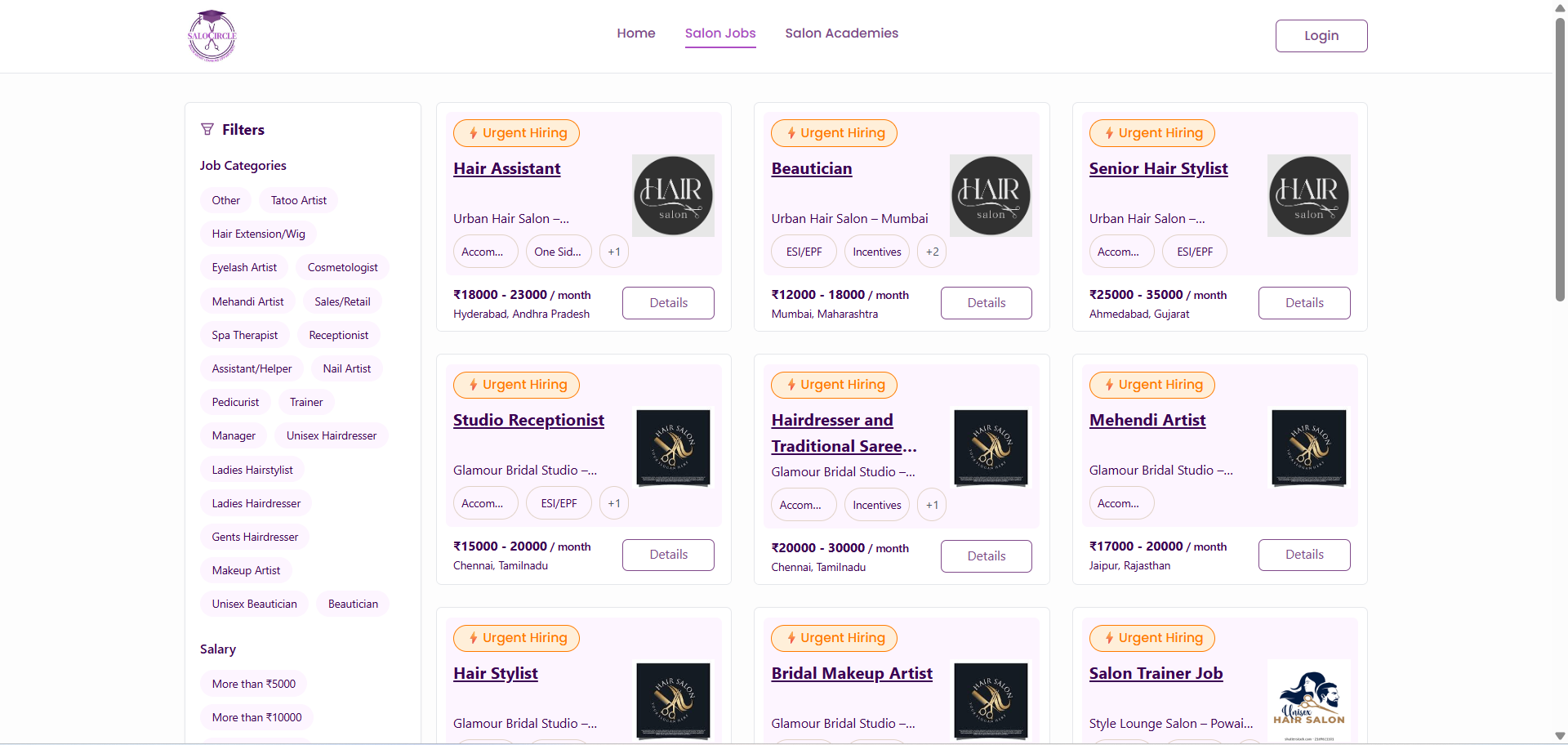
Available Sections:
- Salon Jobs: Preview available job opportunities.
- Salon Academies: Explore skill development programs.
Note You can browse limited information without logging in. To apply or interact, login is required.
Click on the “Login” button to continue.
3. Login & Authentication Process
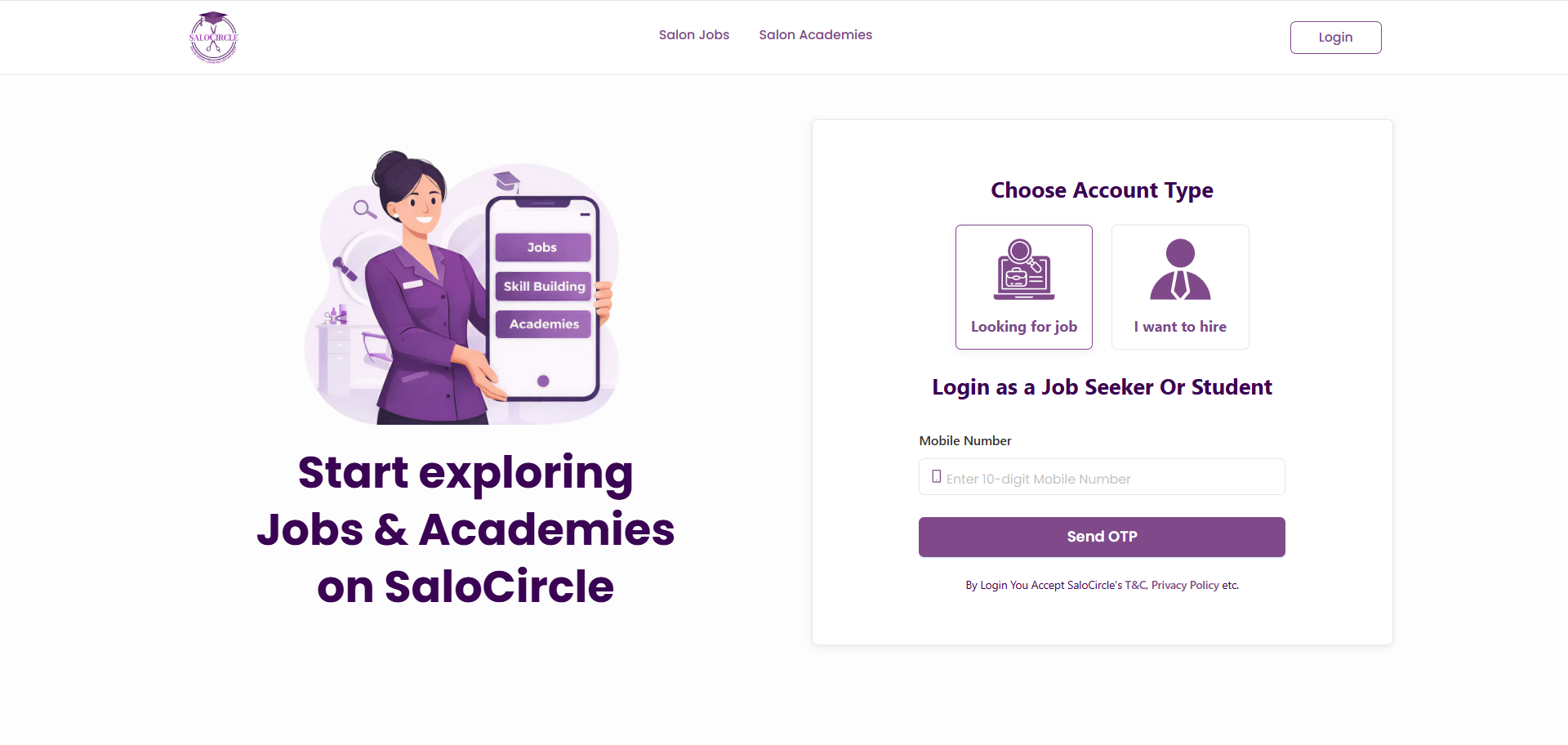
Step 1: Select User Type
- Choose “Looking for Job” to proceed as a job seeker.
Step 2: Mobile Number Entry
- Enter your active mobile number.
- Ensure the number is correct, as OTP will be sent to this number.
Click "Send OTP"
Step 3: OTP Verification
- Enter the One-Time Password (OTP) received via SMS.
- OTP is time-sensitive; enter it promptly.
Once verified, you will be logged into your account.
4. Profile Setup
A complete profile increases your chances of getting hired. Employers prefer candidates with detailed and accurate profiles.
4.1 Personal Information
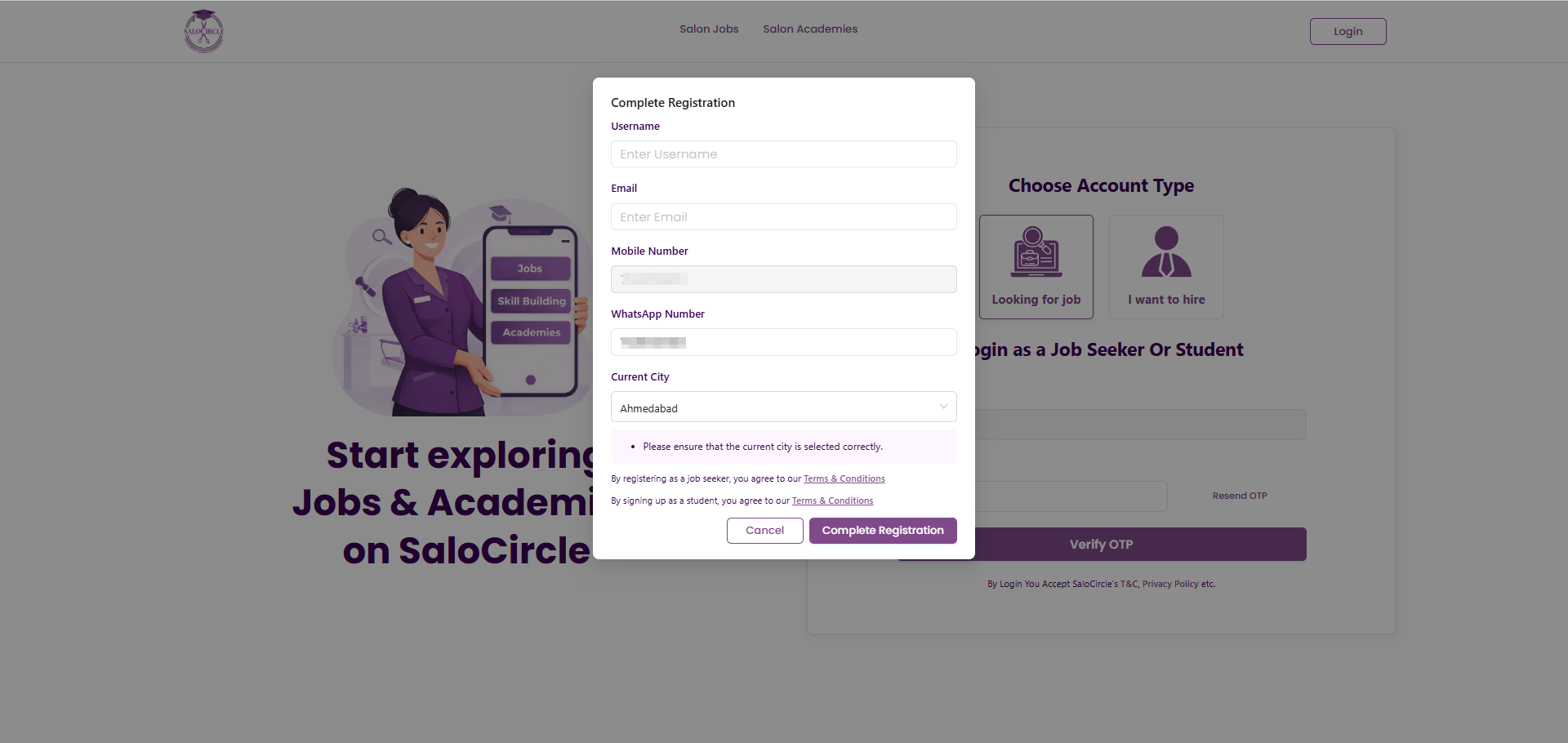
Provide your basic details in the popup form:
Required Details:
- Full Name
- Mobile Number (auto filled)
- Email Address (for communication)
- Current City (location helps in job matching)
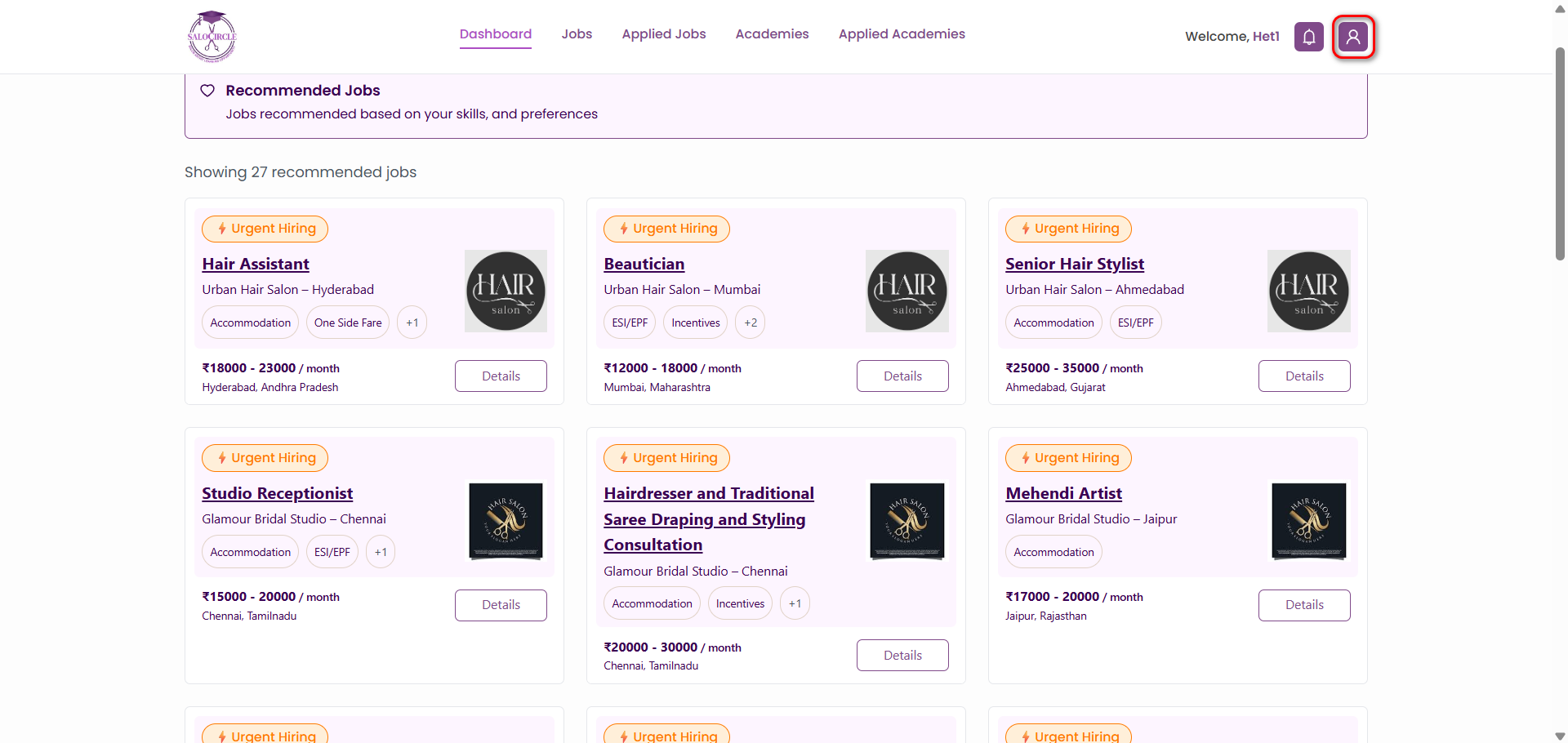
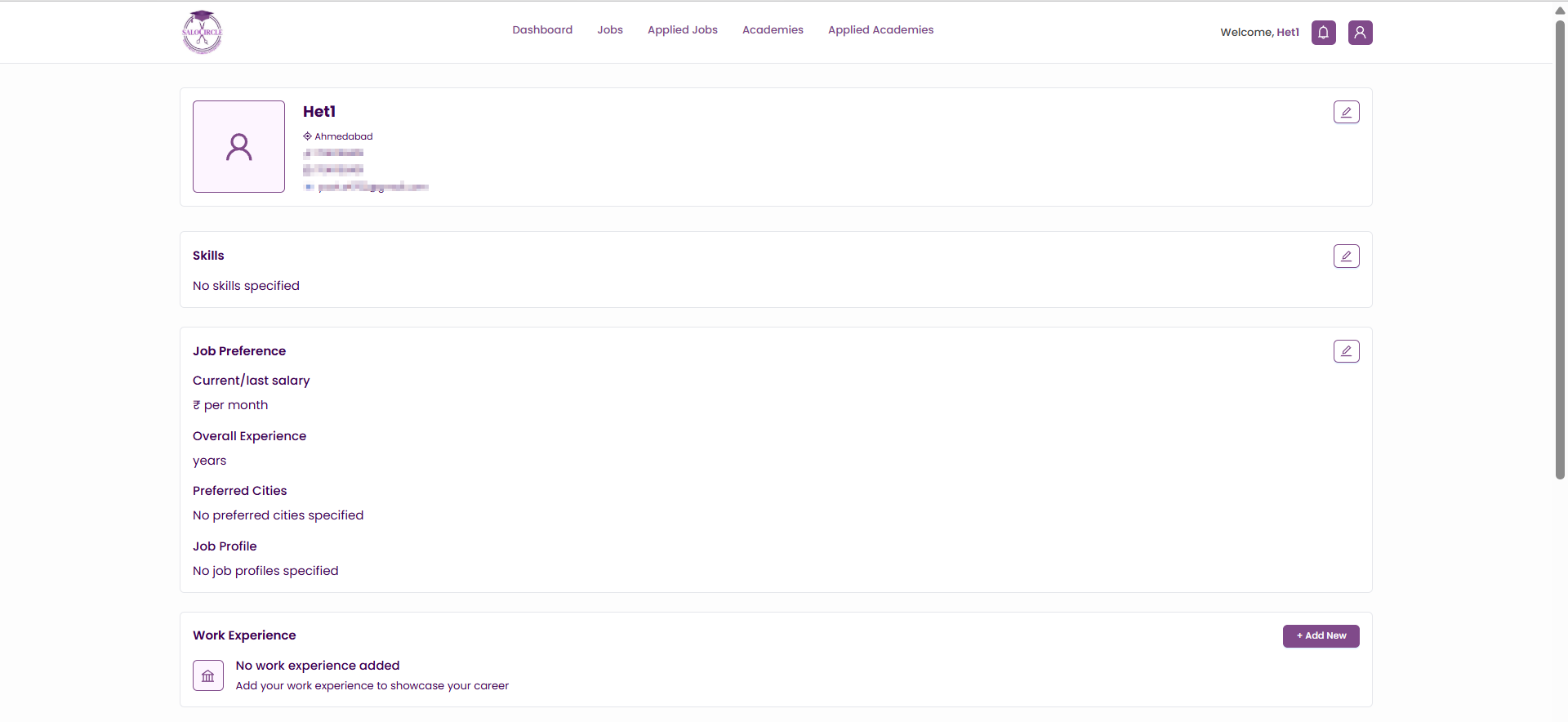
On creating your profile, you will be redirected to the dashboard. Click on the profile icon in the top-right corner, select My Profile, and add the following details:
4.2 Skills
Add all relevant professional skills.
Examples:
- Hair Cutting
- Hair Coloring
- Hair Spa
- Makeup
- Nail Art
- Skin Treatment
- Styling
Tip: Add multiple skills to improve visibility in job searches.
4.3 Job Preferences
Define what kind of job you are looking for:
- Define what kind of job you are looking for:
- Total Work Experience (in years/months)
- Preferred Work Cities
- Job Role (e.g., Hair Stylist, Beautician, Makeup Artist)
Why this matters: Employers filter candidates based on these preferences.
4.4 Work Experience
Add your professional history:
- Salon Name
- City
- Select "Currently Working" if applicable
- Start Date
- End Date (Not required if currently working )
Best Practice:
- Add accurate dates and roles.
- Include multiple experiences if applicable.
4.5 Courses & Certifications
Highlight your training and certifications:
- Academy Name
- City
- Year of Completion
- Additional Learning (select from dropdown options)
- Click “Add” after entering details
Importance: Certifications increase credibility and hiring chances.
4.6 Basic Details
Complete your general profile:
- Age
- Gender
- Languages Known
- Education Level (select from dropdown)
- Current City
Open for Job:
- Select Yes if actively looking
- Select No if not currently available
Click “Update” to save all details.
5. Dashboard Overview
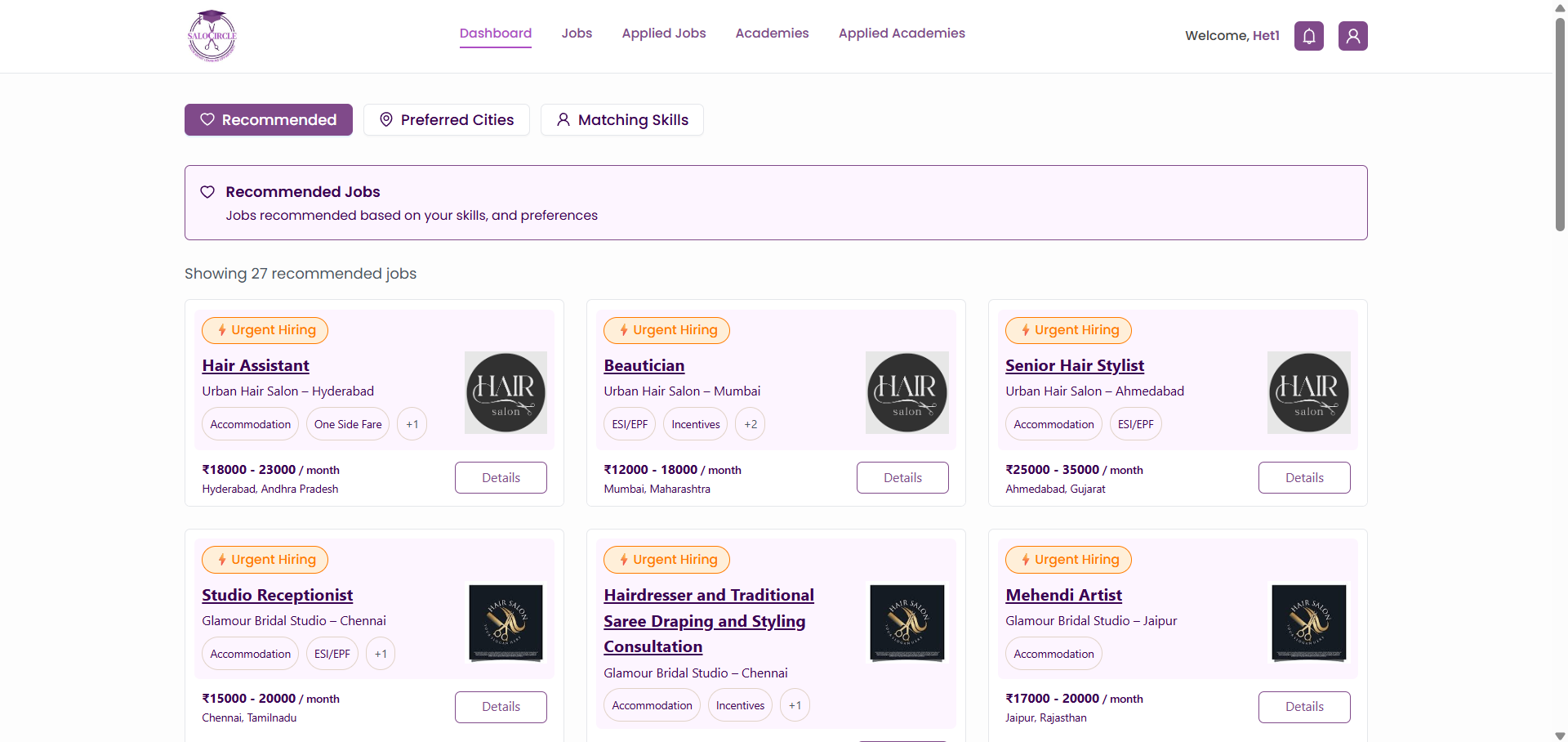
Once logged in, you gain access to the platform’s full functionality, including options to view recommended jobs, preferred city selections, and roles matching your skills.
1. Recommended Jobs - Displays job opportunities tailored to your profile, experience, and skills.
2. Preferred City Jobs - Shows job listings based on your selected or preferred location.
3. Skills Matching Jobs - Highlights jobs that align closely with your listed skills and expertise.
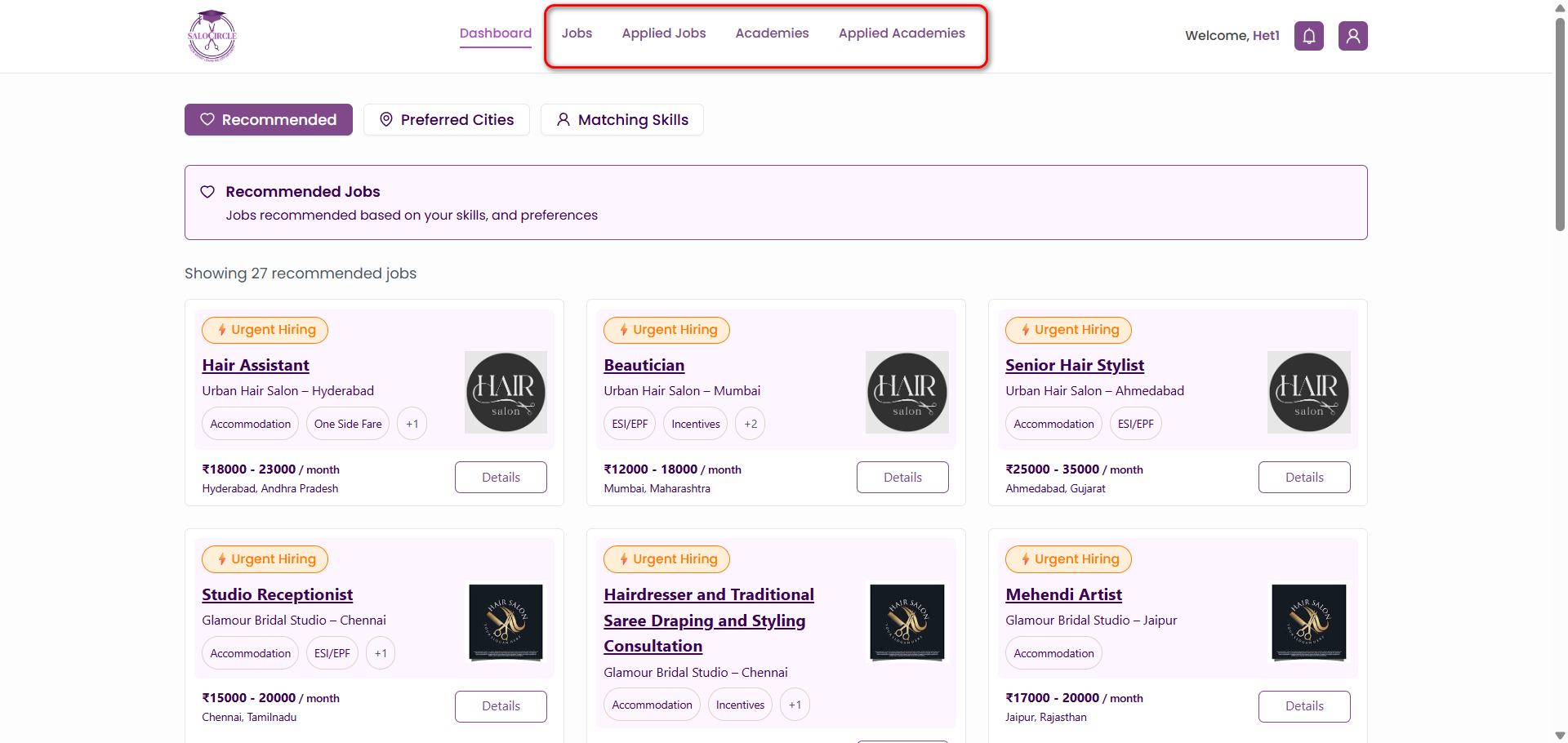
The dashboard is divided into four primary sections:
5.1 Jobs
Browse Jobs
- View a list of all available job opportunities.
- Jobs are displayed with key highlights for quick scanning.
Filter Jobs
Refine your search using:
- State
- City
Benefit: Helps you find relevant opportunities faster.
View Job Details
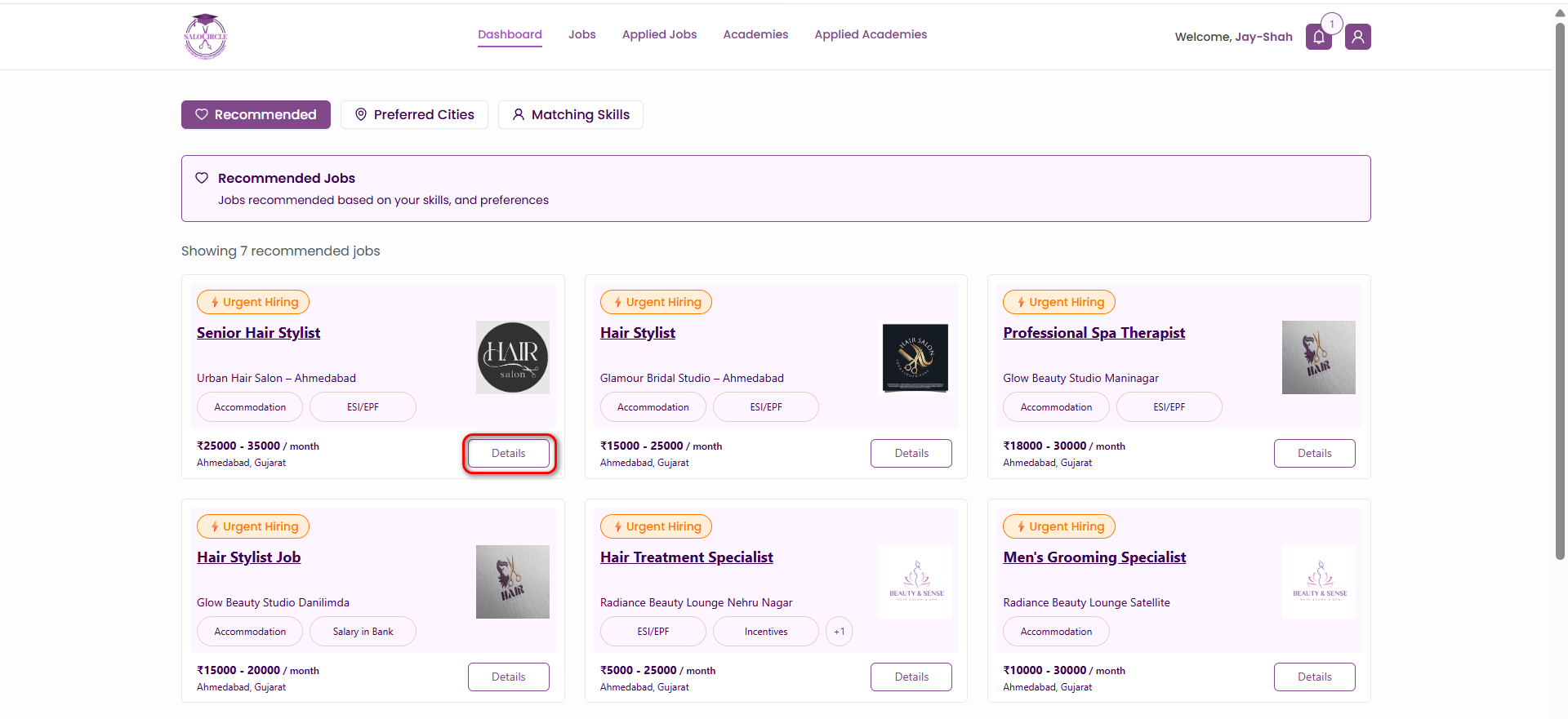
Click on “Details” to see complete information:
- Job Title
- Salon/Company Name
- Salary Offered
- Location
- Detailed Job Description
- Benefits (Accommodation, Incentives, etc.)
- Required Skills
Apply for Job
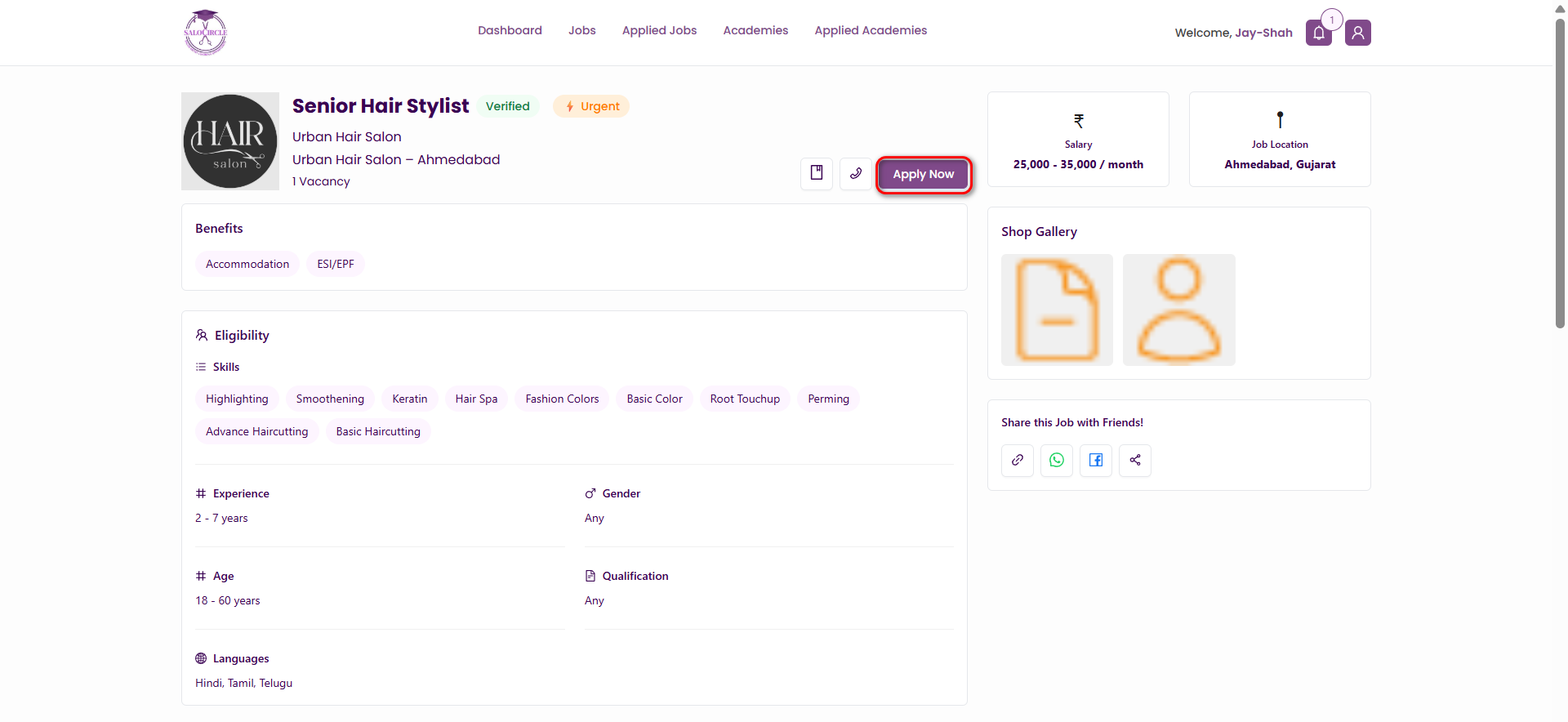
- Click “Apply Now”
- Your profile will be submitted to the employer.
Note: Ensure your profile is complete before applying.
5.2 Applied Jobs
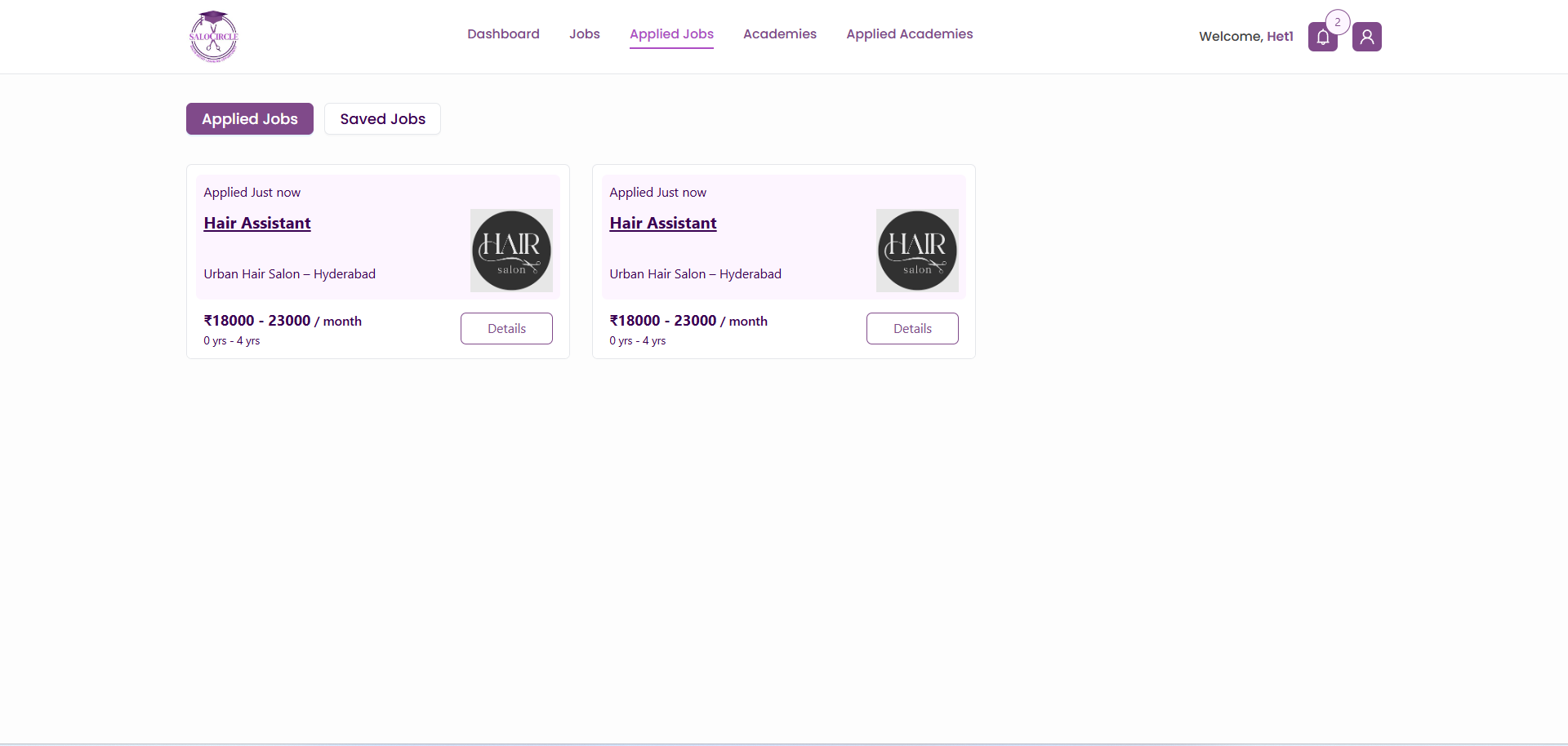
Track Applications
- View all jobs you have applied to.
- Monitor your application status.
Saved Jobs
- Save jobs to view later.
Use Case:
Helpful when you want to compare multiple opportunities before applying.
5.3 Academies Section
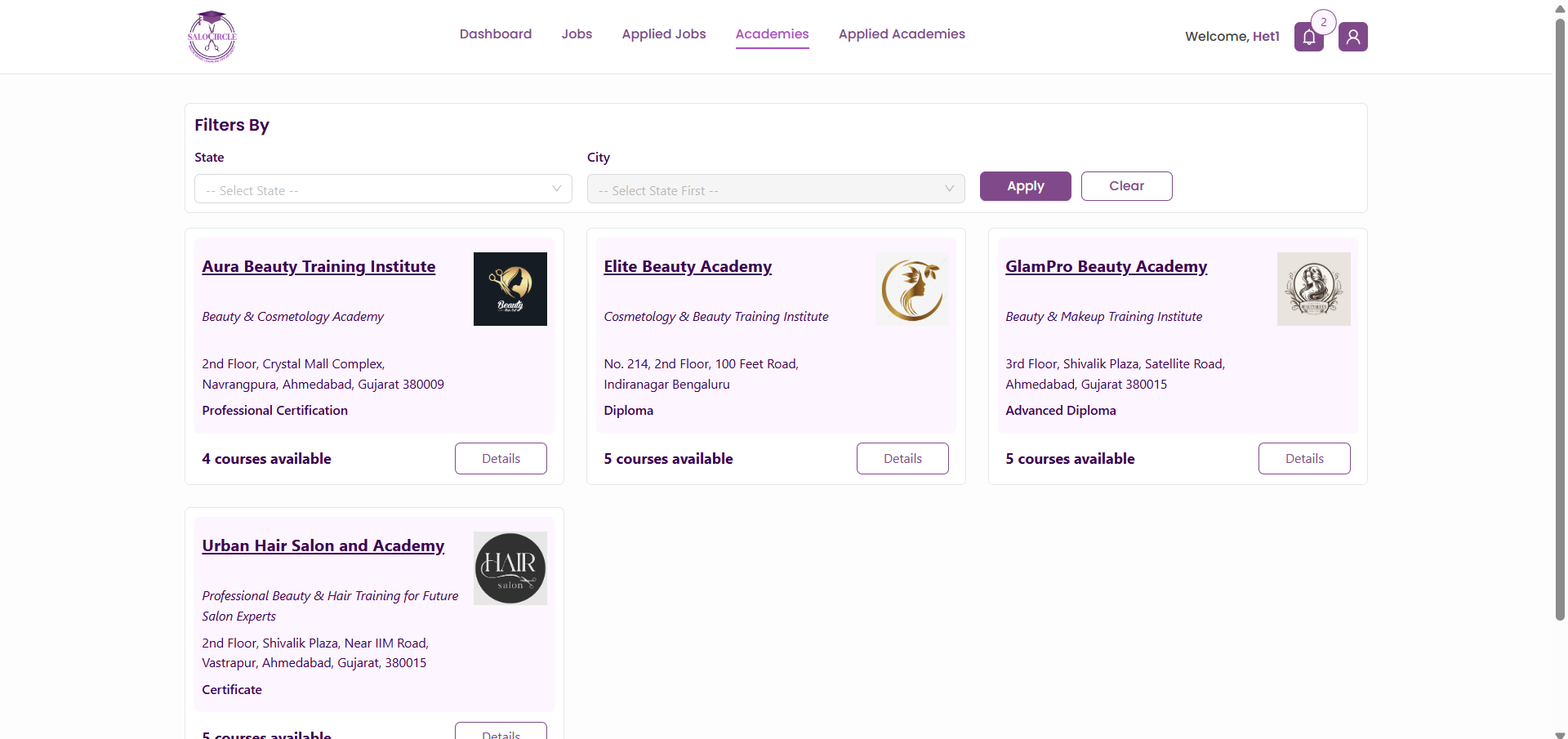
Browse Academies
- Discover institutes offering professional courses.
Filter Academies
- State
- City
View Academy Details
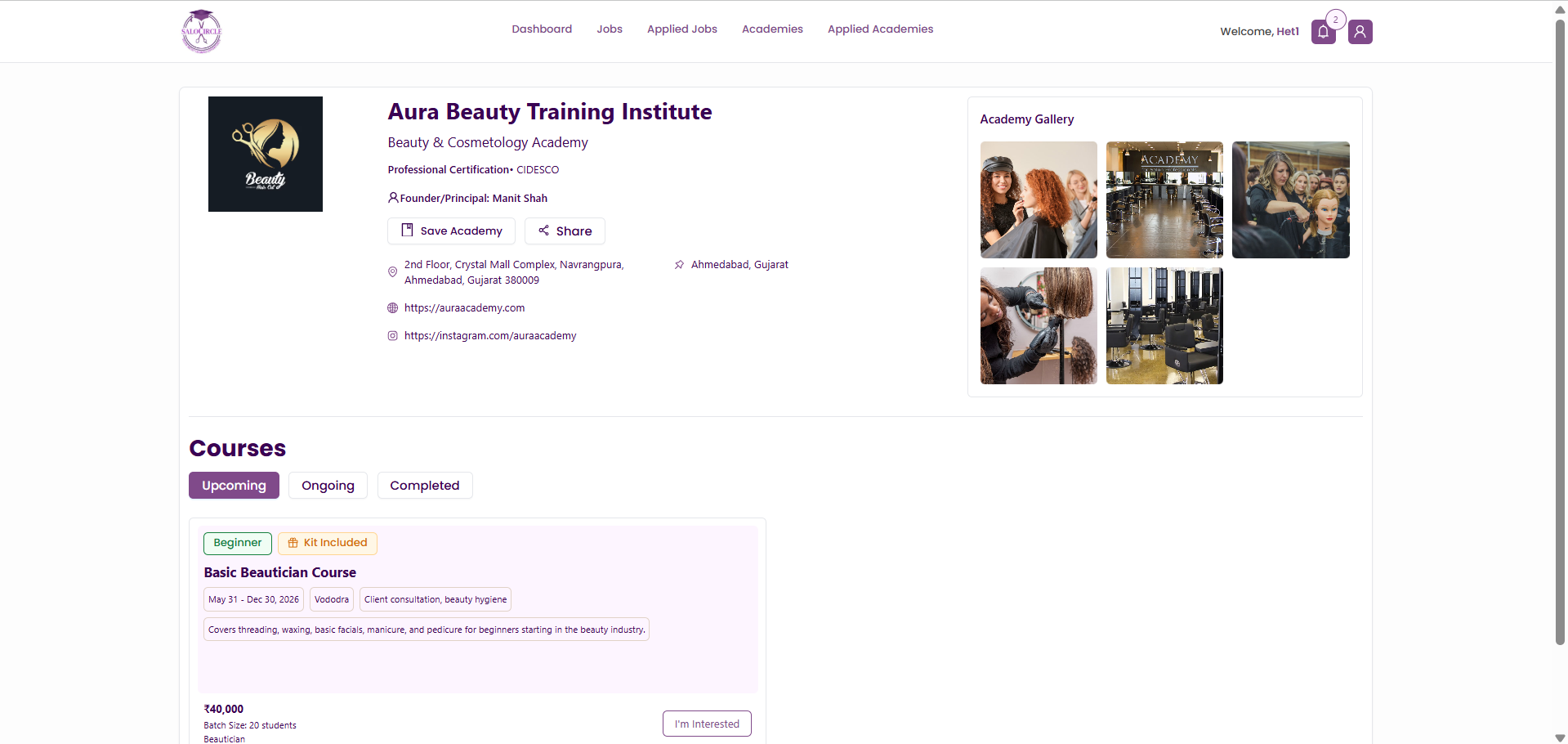
Click “Details” to view Course details provided by Academy:
1. Upcoming
2. Ongoing
3. Completed
- Course Duration
- Fees Details
- Location
- Description
- Batch Size
Click on “I'm Interested” to Apply for the course
- You can also Save academy for later
- You can also Send details via share option
5.4 Applied Academies
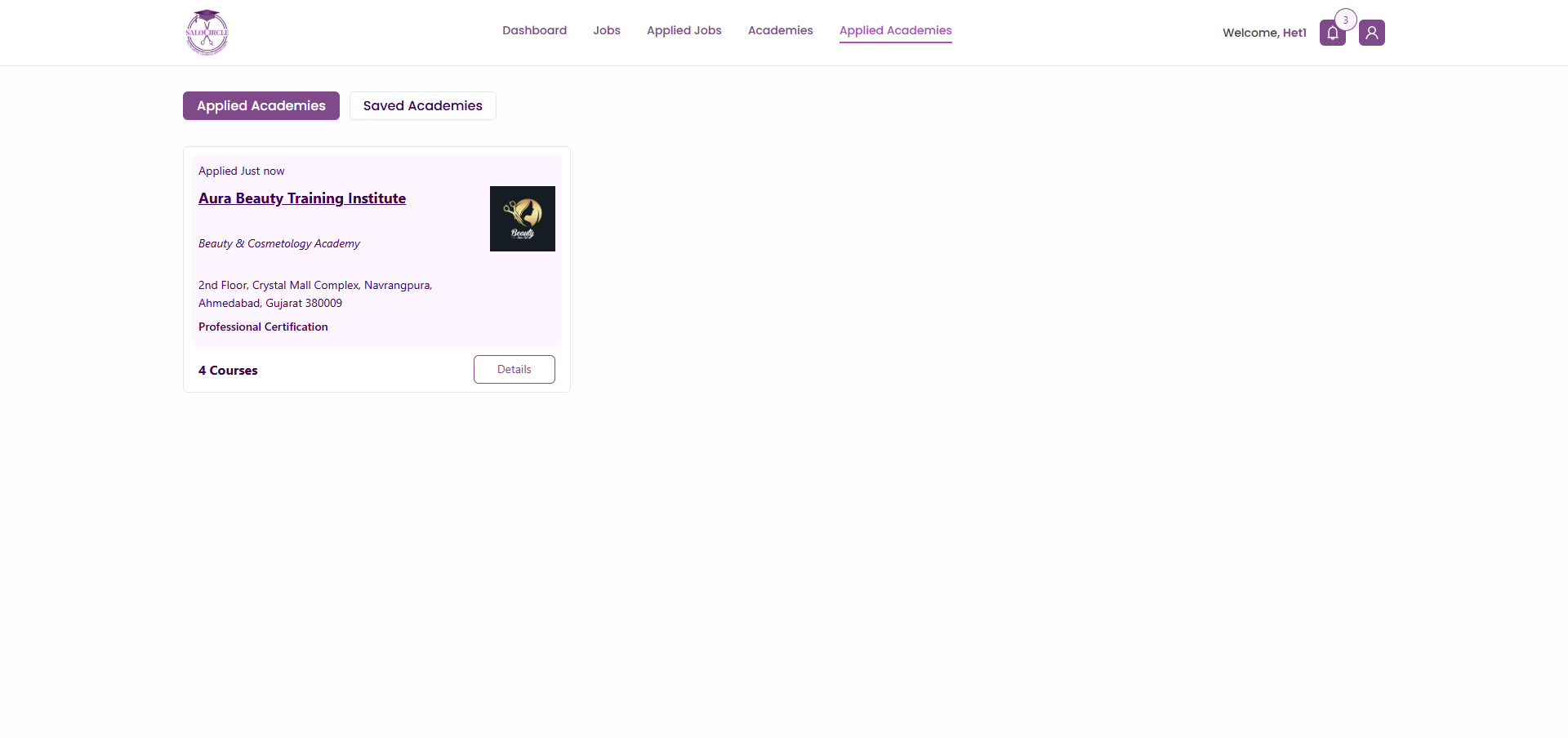
- View all the academies you have shown interest in.
- Track application or enrollment progress.
Note: Once you apply, the Academy Admin will be notified of your application. You will also receive further updates and notifications regarding the status of your application
6. Additional Features
6.1 Profile Management
- Edit your profile anytime.
- Update skills, experience, and preferences regularly.
6.2 Notifications
Stay informed with real-time updates:
- New job postings
- Application updates
- Academy announcements
6.3 Sharing Options
You can share opportunities via:
- Social Media Platforms
- Other apps
7. Best Practices for Job Seekers
- Keep your profile 100% complete
- Add multiple skills to increase discoverability
- Regularly check for new job postings
- Apply early to increase selection chances
- Keep your “Open for Job” status updated